Invincible VS PC System Requirements & Optimization Guide
Complete Invincible VS PC requirements covering minimum, recommended, and ultra specs. Learn graphics optimization, performance tweaks, network setup, and troubleshooting for 60fps competitive play in Quarter Up's 3v3 fighting game.
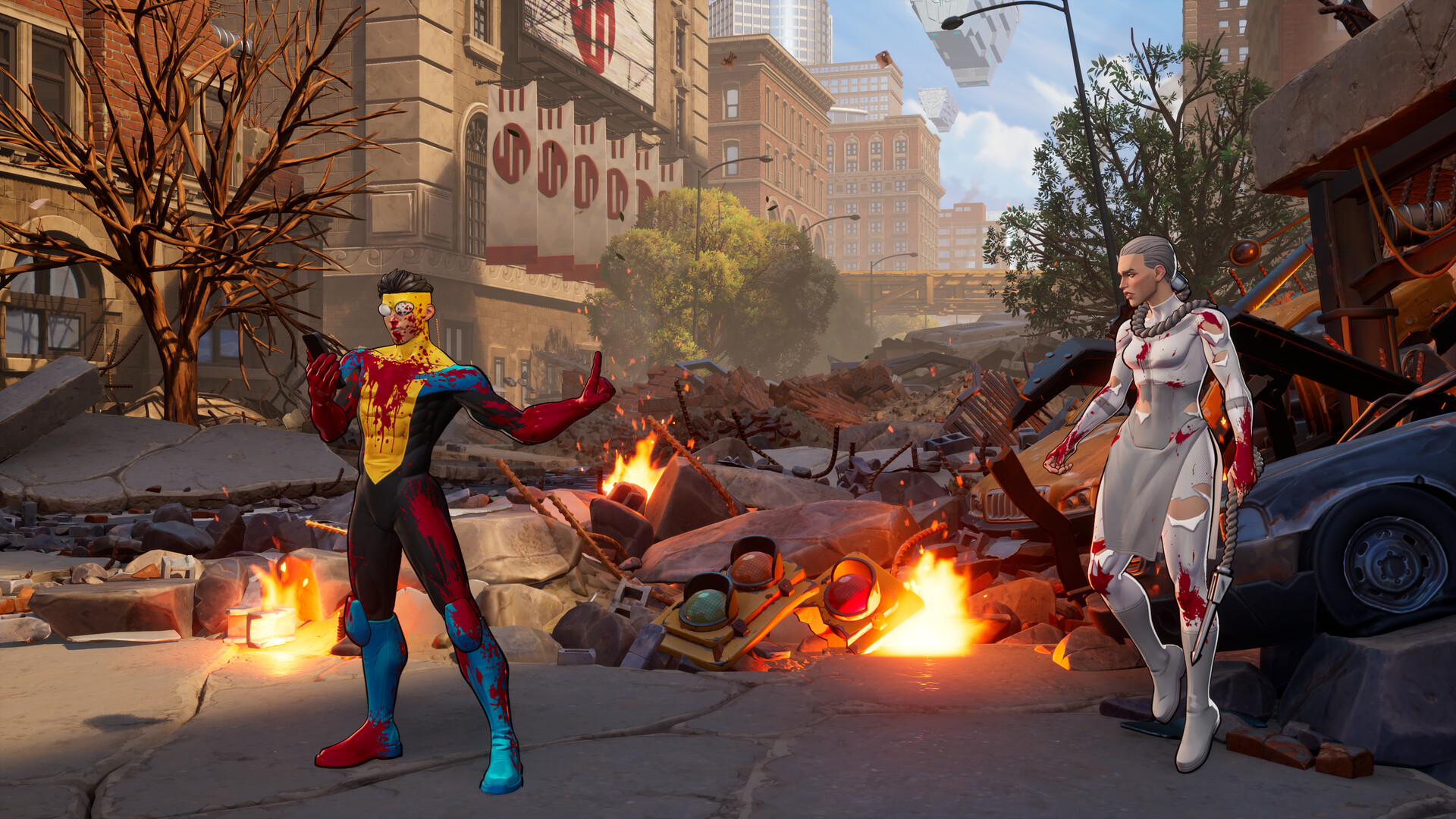
Invincible VS PC System Requirements
Official Invincible VS system requirements for Windows PC. The game is optimized for 60fps gameplay on mid-range hardware with scalable settings for 4K ultra.
Minimum Specs
1080p @ 60fps Low Settings
Recommended Specs
1080p @ 60fps High Settings
Ultra Specs
4K @ 60fps or 1440p @ 240fps
💡 Platform Notes
- •Console versions (PS5, Xbox Series X/S) run at locked 4K 60fps with no settings required
- •Steam Deck compatibility verified - runs 800p @ 60fps on medium settings
- •DirectX 12 required - older GPUs without DX12 support won't run the game
- •Check ourrelease date pagefor platform availability details
Graphics & Settings Optimization
Optimize Invincible VS for competitive play or visual quality. These settings balance performance with clarity for frame-perfect execution.
Graphics Quality
| Setting | Competitive | Casual/Visual | Performance Impact |
|---|---|---|---|
| Resolution | 1920x1080 | 2560x1440 or 4K | High FPS impact |
| Texture Quality | High | Ultra | Medium (VRAM) |
| Shadow Quality | Low/Medium | High | High FPS impact |
| Effects Quality | Medium | High/Ultra | Medium impact |
| Anti-Aliasing | TAA Low | TAA High | Medium impact |
| Motion Blur | OFF | OFF | No impact (preference) |
Display Settings
| Setting | Competitive | Casual/Visual | Performance Impact |
|---|---|---|---|
| V-Sync | OFF | ON (if no tearing) | Adds input lag |
| Frame Rate Limit | Unlimited | 60 FPS locked | Performance vs consistency |
| Display Mode | Fullscreen | Borderless Window | Fullscreen = best performance |
Network Settings
| Setting | Competitive | Casual/Visual | Performance Impact |
|---|---|---|---|
| Rollback Frames | 3-5 frames | Auto | Netcode smoothness |
| Max Ping Filter | 100ms | 150ms | Match quality |
| Cross-play | Enabled | Enabled | Larger player pool |
⚡ Competitive Settings Priority
For ranked play, prioritize: 1) Stable 60fps (no drops), 2) V-Sync OFF (reduces input lag), 3) Fullscreen mode, 4) Low shadows (biggest FPS gain). Visual quality is secondary to frame-perfect execution.
Performance Optimization Tips
Advanced tips to maximize Invincible VS performance. These tweaks can improve FPS by 20-30% and reduce input lag for competitive advantage.
Hardware Optimization
- ✓Use wired Ethernet connection instead of Wi-Fi for online play (reduces lag spikes)
- ✓Install game on SSD for faster loading and stage transitions
- ✓Update graphics drivers to latest version (AMD/NVIDIA release fighting game optimizations)
- ✓Close background applications (Discord overlay, streaming software reduce FPS)
- ✓Monitor GPU/CPU temperatures - thermal throttling causes stuttering
In-Game Settings
- ✓Disable motion blur and depth of field for clearer visuals
- ✓Set frame rate to unlimited for competitive play (sub-16ms input lag)
- ✓Use fullscreen mode instead of borderless window (5-10% FPS gain)
- ✓Lower shadow quality first - biggest FPS impact with minimal visual loss
- ✓Enable performance stats overlay to monitor FPS and frame times
Network Optimization
- ✓Forward port 3074 (Xbox Live) and Steam ports for better matchmaking
- ✓Use QoS settings on router to prioritize gaming traffic
- ✓Test connection during peak hours - adjust max ping filter accordingly
- ✓Wired connection mandatory for competitive play (Wi-Fi adds 10-30ms)
- ✓Close bandwidth-heavy apps (streaming, downloads) during online matches
🔧 PC Optimization Checklist
- 1. Update GPU drivers (AMD/NVIDIA latest)
- 2. Install game on SSD (not HDD)
- 3. Set Windows power plan to "High Performance"
- 4. Disable Windows Game Bar and Game DVR
- 5. Use wired Ethernet for online play
- 6. Close Discord overlay, Chrome, streaming apps
- 7. Monitor temps - clean PC if overheating
Common Issues & Solutions
Troubleshooting guide for Invincible VS technical problems. These solutions fix 90% of common issues.
🔧 Low FPS / Stuttering
- →Lower resolution to 1920x1080 and set graphics preset to Medium
- →Update GPU drivers from manufacturer website
- →Disable Windows Game Bar and Game Mode
- →Check GPU temperature - clean dust if overheating
- →Close Chrome/Discord/OBS - they consume significant resources
🔧 Online Lag / Rollback Issues
- →Switch to wired Ethernet connection
- →Close background apps using bandwidth (streaming, downloads)
- →Lower max ping filter to 80-100ms in matchmaking
- →Forward required ports on router
- →Contact ISP if consistent packet loss (test at speedtest.net)
🔧 Audio Desync / Crackling
- →Update audio drivers from motherboard manufacturer
- →Disable audio enhancements in Windows sound settings
- →Lower audio quality from 192kHz to 48kHz
- →Check for CPU overload - audio issues indicate bottleneck
- →Verify game files through Steam/Xbox app
🔧 Controller Not Detected
- →Update controller firmware (Xbox Accessories app / PS Remote Play)
- →Enable Steam Input for non-Steam controllers
- →Disable Steam Input if using native controller support
- →Try different USB ports (preferably USB 3.0)
- →Check Windows Device Manager for driver conflicts
Still experiencing issues? Check the official Quarter Up support forums orgameplay guidefor additional help.
GPU Performance Benchmarks
Expected Invincible VS performance across popular graphics cards. All tests at target 60fps for competitive play. Values based on similar Unreal Engine fighting games.
| GPU | Max Resolution | Expected FPS | Stable 60? |
|---|---|---|---|
| GTX 1060 6GB | 1080p Low | 58-62 | ✓ Yes |
| GTX 1070 | 1080p Medium | 60 | ✓ Yes |
| GTX 1080 | 1080p High | 60 | ✓ Yes |
| RTX 2060 | 1080p High | 60 | ✓ Yes |
| RTX 2070 Super | 1440p High | 60 | ✓ Yes |
| RTX 3060 | 1080p Ultra | 60 | ✓ Yes |
| RTX 3060 Ti | 1440p Ultra | 60 | ✓ Yes |
| RTX 3070 | 4K Medium | 60 | ✓ Yes |
| RTX 3080 | 4K High | 60 | ✓ Yes |
| RTX 4070 | 4K High | 60 | ✓ Yes |
| RTX 4080 | 4K Ultra | 60 | ✓ Yes |
| RTX 4090 | 4K Ultra | 120+ | ✓ Yes |
| RX 580 8GB | 1080p Low-Med | 55-60 | ~ Borderline |
| RX 5700 XT | 1080p High | 60 | ✓ Yes |
| RX 6700 XT | 1440p High | 60 | ✓ Yes |
| RX 7800 XT | 4K High | 60 | ✓ Yes |
✓ Best Value Options
- Budget: RTX 3060 / RX 6700 XT (1080p Ultra, stable 60)
- Mid-Range: RTX 3060 Ti / RX 6800 (1440p Ultra)
- High-End: RTX 4070 / RX 7800 XT (4K High)
📊 Testing Notes
- • Fighting games run at 60fps internal logic
- • Higher FPS = smoother visuals, no gameplay advantage
- • Stable 60 > fluctuating 90 for competitive
- • Test during intense 3v3 assists for worst case
CPU Performance Comparison
CPU requirements for Invincible VS. Fighting games are less CPU-intensive than other genres - focus GPU budget over CPU for best results.
| CPU | Cores/Threads | Bottleneck? | Notes |
|---|---|---|---|
| Intel i5-6600K | 4C/4T | Minor (1080p) | Minimum spec, may stutter in busy scenes |
| Intel i5-8400 | 6C/6T | None | Good budget option |
| Intel i7-8700K | 6C/12T | None | Recommended spec |
| Intel i5-12400 | 6C/12T | None | Excellent modern budget |
| Intel i7-12700K | 12C/20T | None | Overkill for fighting games |
| AMD Ryzen 5 1600 | 6C/12T | Minor | Minimum AMD spec |
| AMD Ryzen 5 3600 | 6C/12T | None | Sweet spot value |
| AMD Ryzen 7 3700X | 8C/16T | None | Recommended AMD spec |
| AMD Ryzen 5 5600X | 6C/12T | None | Best value AMD |
| AMD Ryzen 7 5800X3D | 8C/16T | None | Excellent for all games |
💡 CPU Upgrade Advice
If you have a modern 6-core CPU (2017+), you're fine for Invincible VS. Upgrade GPU first. Only upgrade CPU if you have a 4-core without hyperthreading (i5-6600K or older) and experience stuttering during complex 3v3 assists with particle effects.
Laptop Gaming Optimization
Special optimization tips for gaming laptops. Laptops face unique challenges with thermal throttling and power limits that affect Invincible VS performance.
Power Settings
- 💻Always plug in AC adapter during gameplay (battery mode throttles GPU)
- 💻Set Windows power plan to "High Performance" or "Ultimate Performance"
- 💻Disable battery boost/saving modes in GPU control panel
- 💻Enable dedicated GPU for the game in Windows Graphics Settings
Thermal Management
- 💻Use a laptop cooling pad with active fans (reduces thermal throttling)
- 💻Elevate rear of laptop for better airflow under chassis
- 💻Keep ambient room temperature below 25°C (77°F) if possible
- 💻Clean laptop vents every 3-6 months (dust buildup causes overheating)
- 💻Repaste CPU/GPU thermal compound annually for gaming laptops
Display & Graphics
- 💻Disable laptop display and use external monitor for lower latency
- 💻If using laptop screen, disable Optimus/hybrid graphics (BIOS setting)
- 💻Set refresh rate to maximum in Windows display settings
- 💻Close lid and use external display if laptop supports it (reduces heat)
Background Processes
- 💻Close browser tabs - Chrome uses significant GPU memory
- 💻Disable startup programs (Spotify, Discord, Steam overlay)
- 💻Turn off Windows background apps in Settings > Privacy
- 💻Use "Focus Assist" or "Game Mode" to reduce notifications
⚠️ Laptop vs Desktop Performance
Gaming laptop GPUs typically perform 10-30% slower than desktop equivalents (e.g., mobile RTX 3060 ≈ desktop RTX 3050). Check your specific laptop model reviews for accurate performance expectations. For competitive play, external monitor + keyboard/controller is strongly recommended.
Steam Deck Optimization Guide
Invincible VS is Steam Deck Verified. These settings achieve stable 60fps with good battery life for portable competitive play.
Recommended Settings
Battery Life Estimates
*Battery life varies by scene complexity and screen brightness
Steam Deck Pro Tips
- 🎮Set TDP limit to 12-15W for balanced battery/performance
- 🎮Use 40Hz refresh rate mode for 2+ hour battery life sessions
- 🎮FSR 1.0 available - set to "Quality" for minimal visual loss
- 🎮Wired Ethernet via USB-C dock strongly recommended for online
- 🎮SSD upgrade to 256GB+ recommended (game is 50GB)
- 🎮Configure per-game profile in SteamOS settings
🕹️ Controller Mapping
Steam Deck controls work out of the box. For competitive play, consider using back buttons (L4/R4) for assists. Community controller profiles available on Steam - search "Invincible VS competitive" in the controller configurator.
Gaming Monitor Recommendations
The right monitor matters for Invincible VS. High refresh rates (144Hz+) and low response times (1ms) provide competitive advantages in frame-perfect execution.
Budget Competitive
Mid-Range Competitive
Premium Competitive
Casual/Visual
📺 Monitor Selection Guide
- •Competitive players: Prioritize 144Hz+ refresh rate and 1ms response time over resolution
- •Casual players: 60Hz is sufficient, focus on color accuracy and screen size
- •Panel type: TN panels have fastest response (0.5ms) but worse colors, IPS balanced
- •Size: 24-27 inches ideal for fighting games (full screen visibility without head movement)
Frequently Asked Questions
Can my PC run Invincible VS?
If you have a GTX 1060 or better, 8GB RAM, and an i5-6600K CPU, you can run the game at 1080p 60fps on low-medium settings. Use websites like "Can You Run It" to check your exact specs against requirements. The game is well-optimized compared to other modern fighting games.
Is SSD required for Invincible VS?
Not required, but highly recommended. SSD reduces loading times from 30-60 seconds (HDD) to 5-10 seconds (SSD). This matters for online matches where fast loading prevents opponent timeouts. NVMe SSDs provide minimal benefit over SATA SSDs for gaming.
What FPS should I aim for?
60fps minimum for competitive play. The game runs at 60fps internally (like most fighting games), so anything below causes input lag and dropped frames. Higher refresh monitors (144Hz+) still benefit from smoother visual feedback, but gameplay is locked to 60fps logic. Prioritize stable 60fps over fluctuating higher rates.
Does Invincible VS support ultrawide monitors?
Yes, confirmed ultrawide support (21:9 and 32:9). However, for competitive play, standard 16:9 is recommended as it matches tournament setups. Ultrawide gives no gameplay advantage (camera is locked) but provides more immersive visuals.
What internet speed do I need for online play?
Minimum 10 Mbps download / 5 Mbps upload. More important than speed is stability and ping. Wired Ethernet connection is mandatory for competitive play - Wi-Fi adds 10-30ms lag. Test your connection at speedtest.net and aim for sub-50ms ping to servers. The game uses rollback netcode which handles up to 150ms reasonably well.
Should I use an arcade stick or controller?
Both work equally well - use what you're comfortable with. Controllers are more accessible and have lower barrier to entry. Arcade sticks feel more "authentic" and some players prefer them for precise directional inputs. Hitbox-style controllers (all buttons, no stick) are gaining popularity in the FGC. The game has full button remapping for all input devices.
Can I run Invincible VS on integrated graphics?
Not recommended. Intel UHD/Iris Xe and AMD Radeon integrated graphics lack the performance for stable 60fps even at lowest settings. You might achieve 30-40fps at 720p, but this severely impacts the competitive experience. A dedicated GPU (even an older GTX 1050 Ti) is strongly recommended.
How do I reduce input lag?
Key settings: 1) Enable "Fullscreen Exclusive" mode (not borderless), 2) Disable V-Sync completely, 3) Turn off frame rate limiters, 4) Disable Windows Game Bar/DVR, 5) Use a monitor with low response time (1ms), 6) Connect controller directly via USB (not wireless), 7) Close background apps. Total input lag should be under 50ms with these optimizations.
Does Invincible VS have DLSS or FSR support?
FSR 2.0 support is confirmed for all platforms. DLSS 3 support is expected for NVIDIA RTX cards. These upscaling technologies let you run at higher visual quality while maintaining 60fps. For competitive play, native resolution is still recommended - upscaling can introduce minor visual artifacts during fast motion.
Will there be a Mac or Linux version?
No native Mac or Linux versions have been announced. The game runs on Unreal Engine 5, which has limited Mac support. Linux users can try running via Proton/Steam Play - fighting games generally work well through Proton with some configuration. Wine/Proton compatibility ratings will be available after launch.